
Amazon Exact Match: 7 Traps, and the One That Kills Sales
Amazon exact match is not exact. See the 7 close variations it also buys, then run the 5-step audit that stops one negative exact from blocking the search term that sells.
Contents
Exact match looks like the one match type you cannot get wrong. You name the search, Amazon shows your ad for that search, and nothing else gets in.
That is not what happens. Amazon’s own definition of exact match ends with the words “close variations”, and the list behind those two words is longer than most sellers expect. On its own, that costs you a little spend on searches you did not choose. Combined with a negative exact, it can cost you your best-selling search term.
The 7 close variations exact match also buys
Six of these come from Amazon’s own pages. The seventh comes from our own search term reports. Click any variation to jump to its proof.
| # | Variation | Summary | Source |
|---|---|---|---|
| 1 | Misspellings | A typo in the search still counts | Amazon |
| 2 | Acronyms | The short form and the long form count as one | Amazon |
| 3 | Translations | The same word in another language counts | Amazon |
| 4 | Singular and plural | “sheet set” shows for “sheet sets”, and the reverse | Amazon |
| 5 | Word order | “white running shoes” shows for “running shoes white” | Amazon |
| 6 | A different word | “outside lights” shows your ad for “outdoor lights” | Amazon |
| 7 | Presence or absence of stop words | Words like “of”, “for” and “in” added or dropped | Our own search term reports |
1. Misspellings
A shopper who types your keyword with a letter missing or doubled still sees your ad. This is the variation most sellers already expect, and it is the least dangerous on its own.

Source: Amazon Ads, Understand keyword match types
2. Acronyms
The short form of a term and its long form count as one keyword, in both directions. If your keyword contains a product abbreviation, the spelled-out version is part of the same match.

Source: Amazon Ads, Understand keyword match types
3. Translations
The same product word in another language counts as a match. This matters most on marketplaces where shoppers search in more than one language.

Source: Amazon Ads, Understand keyword match types
4. Singular and plural
Singular and plural count as the same keyword, in both directions. Amazon’s Sponsored Products guide gives the exact keyword “Doppler cotton sheet set” showing for the search “Doppler cotton sheet sets”.
This one matters most for negatives, because the singular and the plural of a term often perform very differently.
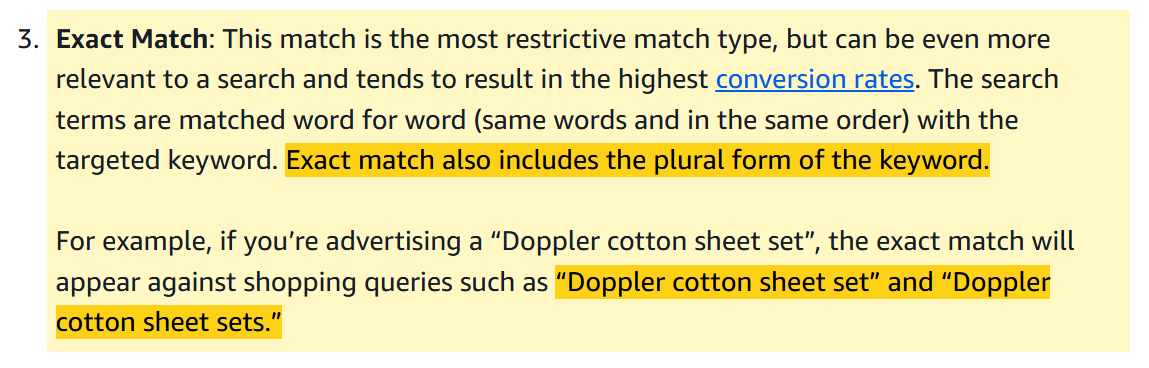
Source: Amazon Ads, Targeting with Sponsored Products
5. Word order
Amazon’s keyword targeting guide says the exact keyword “white running shoes” can show your ad for “running shoes white”.
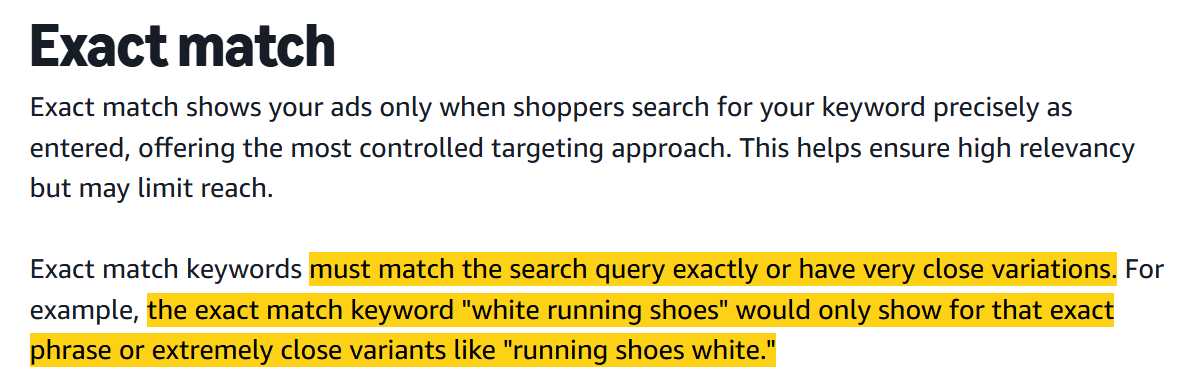
We have confirmed from our own data that a different word order can be served as an exact match.
Sources: Amazon Ads, Keyword targeting, and Amazon Ads, Targeting with Sponsored Products
6. A different word
This is the most surprising of all. Amazon’s own example of an exact match is the keyword “outside lights” showing your ad for the search “outdoor lights”.
“Outside” and “outdoor” are not a typo and not a plural. They are two different words. If Amazon counts that as exact, then exact means “close enough”, and Amazon decides what close enough is.
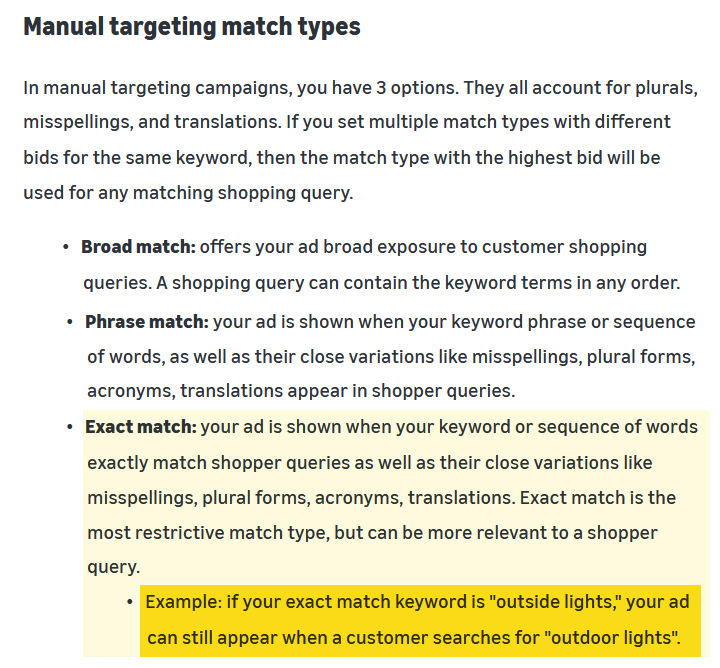
We have also seen different words served as exact matches in our own historical data.
Source: Amazon Ads, Understand keyword match types
7. Presence or absence of stop words
Stop words are the small joining words: of, for, in, the, with. I have not found a stop word example on any Amazon page, but our search term reports show it working in both directions.
- Our exact keyword sweets in bulk showed for the search sweets bulk. The stop word was dropped.
- Our exact keyword gift man showed for the search gifts for men. A stop word was added, and both words became plural in the same match.
The second example is two variations at once. So the 7 are not separate rules. They combine, and one keyword can drift quite a long way from what you typed.
Source: our own search term reports.
Why this gets expensive: negative exact follows the same rules
On the positive side, close variations cost you some spend on searches you did not pick. That is annoying, but a bid change fixes it.
The negative side is different. Amazon’s match types page says negative exact stops ads on searches that contain the exact phrase or a close variation.
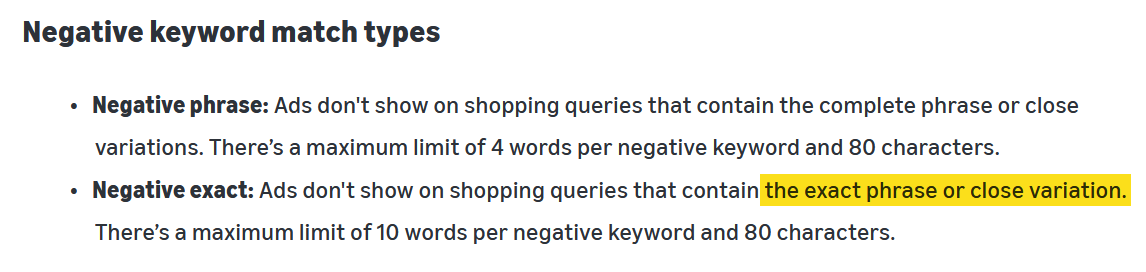
Source: Amazon Ads, Understand keyword match types
So one negative exact does not exclude one row of your report. It excludes the whole family: the plurals, the misspellings, the stop word versions, and possibly the different-word versions too. One of those is often the search that sells.
Here is how it goes wrong. A term has clicks and no sales, so you add it as a negative. That is the standard advice, and it looks sensible on the row in front of you. But the plural of that term was your best seller. It stops showing, its sales stop, and nothing in the account tells you why, because an excluded search never appears in the report again. You cannot see the hole you made.
That is why a negative deserves more care than any other change. A paused target comes back tonight. Excluded traffic comes back only if you work out that you excluded it.
The 5-step check before you add a negative exact
Run this on any term you plan to exclude. By hand, it takes about ten minutes for one term.
Step 1. Check relevance first. If the search asks for something your product does not do, exclude it and stop here. Clicks do not matter for that decision. The rest of this check is for a relevant term that loses money.
Step 2. Write out the family. Before you write the negative, list every member of the term’s family:
- the singular and the plural of each word
- each version with and without the stop words
- the misspellings you can think of
- any acronym or long form
- the obvious synonym, like outside and outdoor
- the main words in a different order
Step 3. Add up the family, not the row. Find every family member in your Sponsored Products search term report. Add up the clicks, spend and sales across the whole list. That total is what your negative will actually block.
Step 4. Decide from the total. If the family makes money overall, leave it alone. The member with no sales is part of the cost of the members that sell. If the family loses money overall, the negative is a fair call.
Also ask whether you have enough data to decide. Four clicks and no sales is not evidence. Four variations with four, six, three and five clicks, and one sale among them, is a pattern you can only see once you group them.
Step 5. Check the negatives you already added. For each one, pull the report for the period before you added it, write out the family, and look up each member. Any variation that sold before and stopped after is your damage. Checking the period after proves nothing, because the negative removes those searches from the report.
The search term report only reaches back about 60 days, and older data is gone for good. For a negative older than that, remove it, wait two weeks, and watch for sales from a search you did not expect.
The faster way
Steps 2 and 3 are fine by hand for one term. They do not work for a report with thousands of rows.
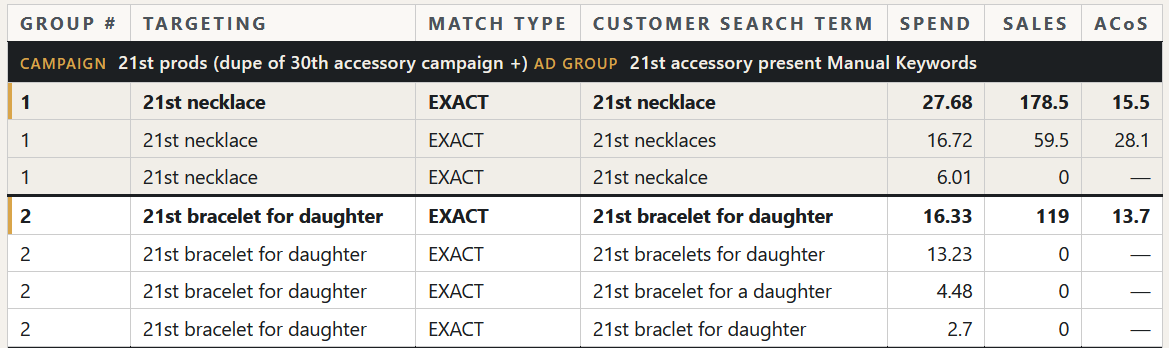
The Amazon Exact Match Checker reads your Sponsored Products search term report. It shows which of your exact keywords Amazon matched to a different search, and what each match cost. The file stays on your computer.
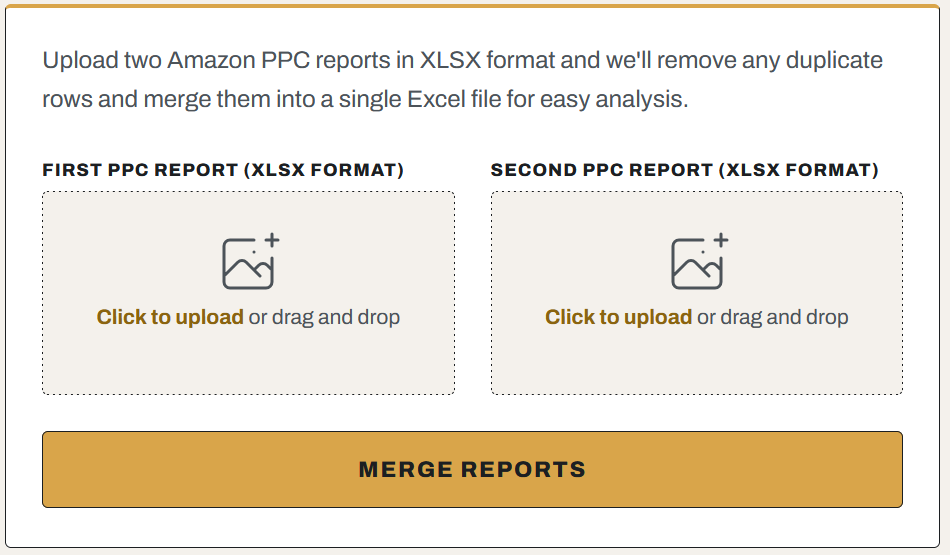
If you need more than 60 days of data, merge your reports first with the PPC History Extender.
When one variation sells and the others do not
This is the most common question, and there is no clean answer. You cannot split the family.
An exact keyword on the winner still shows for the whole family. A negative on a loser still blocks the winner. So the family stays the unit you decide on, and your tools are the bid and the price, not the negative. Lower the bid, or move the profitable variation into its own exact campaign where you control its bid directly. A paused target is easy to undo. A negative, in practice, is not.
Platform limits to know first
| Limit | What it means for you |
|---|---|
| A negative keyword takes 72 hours to take effect | Checking the report the next morning measures nothing |
| A negative product takes 96 hours | The same trap, with a longer wait |
| You cannot change the match type of an existing negative | Remove it, then add it again |
| Negative exact allows 10 words, negative phrase allows 4 | Both have an 80 character limit |
| A negative product at ad group level affects that ad group only | At campaign level it affects every ad group in the campaign |
FAQ
Is Amazon exact match really exact? No. Amazon’s definition of exact match includes close variations, and its own examples include a plural, a change of word order and a different word: “outside lights” showing for “outdoor lights”.
Does negative exact block only one search term? No. Amazon’s definition of negative exact includes the exact phrase or a close variation. One negative exact blocks a family of searches, including plurals and misspellings.
Can I exclude the plural and keep the singular? No. Both sit in the same close variation family, so a negative on one also reaches the other. Use the bid to control an unprofitable variation instead.
How do I know whether an old negative did damage? If you added it more than about 60 days ago, the report data is gone and nothing can prove it. Remove the negative, wait two weeks, and watch for sales from a search you did not expect.
Does this apply to Sponsored Brands? Amazon’s keyword targeting guide says Sponsored Brands uses meaning-based matching, which is wider still on the positive side. I have not found an Amazon page that gives a separate negative exact definition for Sponsored Brands, so treat the negative side as at least as wide as Sponsored Products.
What to do next
- Download your Sponsored Products search term report for the last 60 days.
- Run it through the Exact Match Checker and see what your exact keywords actually bought.
- List every negative exact you added in the last 60 days, and run step 5 on each one.
For the wider process, read the negative keywords guide. For how broad and phrase match behave, read the match types guide.